If you've heard people talk about Claude Code, you've probably heard about two versions of it. One lives in the Claude desktop app, with buttons and a sidebar. The other lives in something called the terminal, a plain window full of typed commands.
That second one sounds intimidating. Most explanations make it worse, because developers write them for other developers.
So here's the plain version. What each one is, what each can do that the other can't, and which one you actually need.
What is the difference between Claude Code desktop and the terminal?
They run the same Claude Code underneath. The difference is the vehicle around it. The desktop app gives you a visual workspace for working alongside Claude. The terminal version runs when you type a command, and that means other programs can type the command too: on a schedule, inside a script, or on a computer nobody is sitting at.
Anthropic's documentation puts it directly. The desktop app "runs the same underlying engine with a graphical interface." Same models, same abilities.
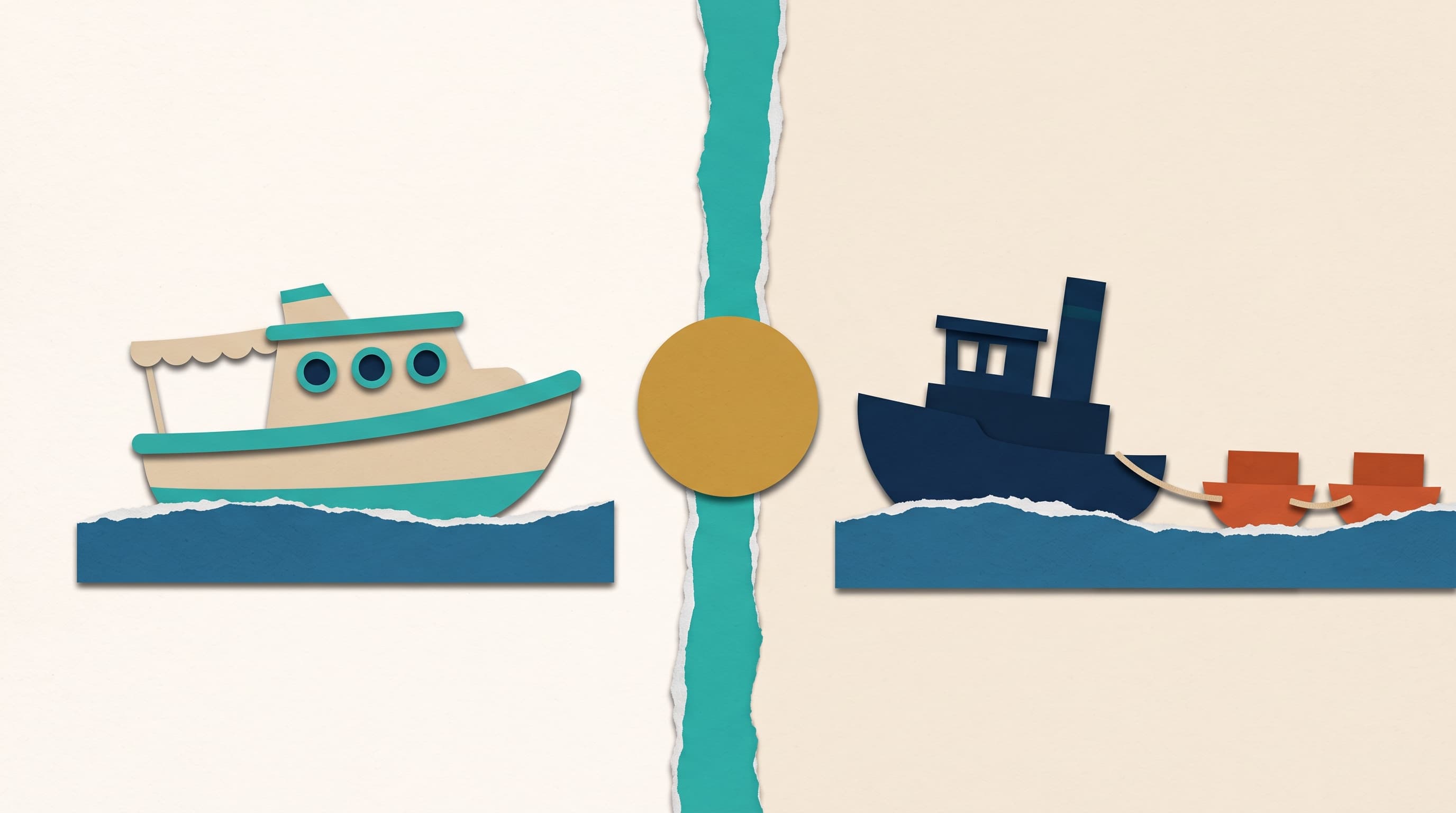
Think of it as one engine in two vehicles. The desktop app is the comfortable car: a clear dashboard, good mirrors, easy to drive on day one. The terminal is the truck with a tow hitch. It's less comfortable, but it can hook onto other things and haul them, and it can run with nobody in the driver's seat.
A few words, decoded
- Claude Code: the version of Claude that works directly on files on your computer. It reads them, edits them, runs tasks, and checks its own work, instead of only chatting.
- Terminal: a text window built into every Mac and PC where you type instructions to the computer instead of clicking. On a Mac, it's an app literally called Terminal.
- CLI: short for command-line interface. Any program you use by typing in the terminal. "Claude Code CLI" and "Claude Code in the terminal" mean the same thing.
- Headless: running a program with no window and no person watching. You hand it a job, it does the job, and it reports back.
- Script: a short saved list of instructions a computer follows in order, like a recipe.
What can the desktop app do?
The desktop app is the Code tab inside the regular Claude app for Mac and Windows, with Linux in beta. It includes Claude Code, so there's nothing extra to install. It does need a paid Claude subscription.
What you get is visibility. You can run several sessions in a sidebar, each on its own project. When Claude changes a file, you see a before-and-after view with the changes highlighted (developers call this a diff), and you can leave comments on specific lines. You can attach images and PDFs.
It can keep a timetable, too. The app's Routines page sets up scheduled tasks, like a morning briefing that reads your calendar. One catch, straight from the scheduling docs: local tasks only fire "while the app is open and your computer is awake." Close the laptop lid and that run is skipped.
Anthropic's own advice: use the desktop app "when you want to manage parallel sessions in one window, arrange panes side by side, or review changes visually."
What can the terminal do that the desktop app can't?
In a word, automation. The same advice says to use the terminal "when you need scripting, automation, or prefer a terminal workflow."
The key feature is called print mode. You type claude -p followed by a job, and Claude Code does the job and exits. No window, no back-and-forth. That's the headless part. And because it's just a typed command, anything that can type a command can start it: a script, the scheduler built into the computer, or a server that never sleeps.
That's the tow hitch, and the desktop app doesn't have one. Anthropic's comparison table sums up scripting and automation in the app in two words: "Not available." The app is interactive only.
Picture an overnight job that runs at 6 a.m., reads the new files in a shared folder, and leaves a one-page summary waiting for you. On a computer that stays on, one terminal command can do that every morning whether or not anyone is at the desk.
A few other things live only in the terminal today:
- Piping. Feeding the output of one program straight into Claude. Send in last night's error log, get a plain-English explanation back.
- Other cloud providers. The terminal connects directly to Amazon Bedrock, Google Cloud, and Microsoft Foundry, which some companies require. The desktop app uses Anthropic's own service by default and needs extra setup for the others.
- Agent teams. One Claude acts as team lead and hands tasks to several others. The docs list this as terminal-only.
Do you have to choose one?
No. According to the docs, "Desktop and CLI read the same configuration files, so your setup carries over." That includes your CLAUDE.md files, your connections to other apps, your saved skills, and your settings. You can run both at the same time, even on the same project. Type /desktop in the terminal and your conversation moves into the app.
CLAUDE.md is a plain text file of instructions Claude reads at the start of every session: how you like things done and what to avoid. It's a context file, and both vehicles read it.
Desktop app vs. terminal at a glance
| Desktop app | Terminal | |
|---|---|---|
| How you use it | Click and type in a visual window | Type commands in a text window |
| Getting started | Install the Claude app, open the Code tab | Paste one install command into the terminal |
| Seeing what changed | Highlighted before-and-after view | Text in the window |
| Several jobs at once | Side-by-side sessions in a sidebar | A separate terminal window for each |
| Scheduled jobs | Routines, while the app is open and the computer is awake | Any scheduler, including on computers that never sleep |
| Headless runs (no window at all) | No, interactive only | Yes, with claude -p |
| Plugs into scripts and other programs | No | Yes |
| Your instructions, connections, and skills | Shared | Shared |
| Best for | Working alongside Claude | Handing Claude a job to finish on its own |
There's also a third option worth knowing about. Routines that run in Anthropic's cloud keep going even when your computer is off, and you can set them up from the app, the web, or the terminal. The trade-off is that they work from a fresh copy of your project, so they can't see the files on your computer.
Which one should you use?
Start with the desktop app. If you've never opened a terminal, there's no reason to begin there. You get the same Claude, you can see what it's doing, and you can approve changes before they stick.
Move to the terminal when you catch yourself wanting Claude to work without you. Every morning. Every time a file lands in a folder. On a machine that's always on. That's the moment you need the tow hitch.
Plenty of people end up using both. They read the same instructions, so nothing you set up in one is wasted in the other.
One caveat: Claude Code changes quickly. This reflects Anthropic's documentation as of October 19, 2026.
The part that matters more than the vehicle
Either way, Claude Code is only as good as what it knows about you. In a personal AI operating system, it's one tool among several, and the lasting value sits in the context it reads. Getting that right is what context engineering means, and it's the same first step whether you're setting up a new assistant or wiring up an agent.
So pick the vehicle that fits the trip. Then make sure whatever is driving has direction, not just instructions.
Frequently Asked Questions
- What is the difference between Claude Code desktop and the terminal?
- Both run the same Claude Code engine. The desktop app is a visual workspace: you see changes highlighted, run several sessions side by side, and approve work as it happens. The terminal version is run by typing commands, which means scripts and schedulers can start it too. That makes the terminal the one for automation and jobs that run with nobody watching.
- Is the Claude Code desktop app the same as the Claude Code CLI?
- Underneath, yes. Anthropic's documentation says the desktop app runs the same underlying engine with a graphical interface. Both read the same settings, the same CLAUDE.md instruction files, and the same connections to other apps. What differs is the interface: buttons and panels in the app, typed commands in the terminal, plus a few features that exist in only one.
- Do I need to use the terminal to use Claude Code?
- No. The Code tab in the Claude desktop app for Mac and Windows includes Claude Code, so there is nothing extra to install, though it needs a paid Claude subscription. You only need the terminal if you want Claude to run inside scripts, on a schedule from a computer that stays on, or with a cloud provider like Amazon Bedrock.
- Can Claude Code run automatically without me?
- Yes, in three ways. The desktop app runs scheduled tasks, but only while the app is open and your computer is awake. The terminal's print mode, claude -p, runs a job with no window, so any script or scheduler can start it. Cloud routines run on Anthropic's servers even when your computer is off, though they can't see files on your machine.
- Can I switch between Claude Code desktop and terminal?
- Yes. You can run both at the same time, even on the same project, because they share configuration. To move a conversation from the terminal into the app, type /desktop in the terminal. From inside the app, typing /resume lists the sessions you started in the terminal on that computer so you can pick one up where you left off.